Implementation references

An overview of implementation references.

Scripting API
Selection
The selection API tracks Object-based selections, recording this automatically to the Editor Selection History.

Selection History · UX essentials

Essential guidance on effectively using Selection History Navigation.

Windows with no content use empty states
US-0205
Blue plus sign icon indicating that clicking on this will expand this content
Labels do not end with punctuation
US-0213
Blue plus sign icon indicating that clicking on this will expand this content
In Inspector-like windows, input controls should have labels and tooltips
Blue plus sign icon indicating that clicking on this will expand this content
Only use link labels for opening external applications
Blue plus sign icon indicating that clicking on this will expand this content
Tooltips are written in clear, complete sentences
Blue plus sign icon indicating that clicking on this will expand this content
All UI elements use the appropriate font
US-0216
Blue plus sign icon indicating that clicking on this will expand this content
UI uses appropriate font sizes
US-0217
Blue plus sign icon indicating that clicking on this will expand this content
Padding exists between text and other UI elements
US-0218
Blue plus sign icon indicating that clicking on this will expand this content
Text is aligned appropriately
US-0219
Blue plus sign icon indicating that clicking on this will expand this content
Adapt your content layout for various window sizes
Blue plus sign icon indicating that clicking on this will expand this content
The interface should support the set min and max sizes of the window
Blue plus sign icon indicating that clicking on this will expand this content

Overview

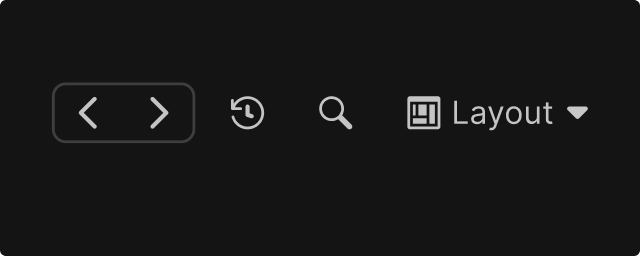
Buttons allowing to move backwards or forwards through selection history

Selection History allows users to navigate through their recent selections using back/forward navigation, similar to web browser history. This pattern addresses a common workflow disruption: accidentally losing context when selecting a different object.

Choosing Pattern

Decision Tree

Use this flowchart to determine which pattern applies:

Does the selection change what's shown in the main Inspector?
    │    
    ├─► Yes → Register with Global Selection History    
    │
    └─► No → Does the window have internal navigation state?                
                           │ 
                           ├─► Yes → Implement Local Selection History
                           │
                           └─► No → No selection history needed

Usage Comparison

Selection History can be implemented at two scopes for various aspects:

The Editor Selection History is the Editor-wide history that tracks any selection affecting the main Inspector window. This is the shared navigation context across the Editor.
  1. Single, Editor-wide history stack
  2. Keyboard shortcuts are Ctrl/Cmd + [  or  Ctrl/Cmd + ]
  3. Optional toolbar buttons in the main toolbar
  4. Records up to 50 selections
  5. Managed by the core Editor

Local Selection History is window-specific navigation for self-contained editing environments that manage their own selection context independently from the main Inspector.

  1. Per-window history stack
  2. Window provides its own back/forward UI (toolbar buttons within the window)
  3. Does not clutter the global history with internal navigation
  4. Window manages its own history depth and persistence

Registration with Global Selection History:

  1. Registration is implicit
  2. Selection changes as they happen via the Selection.selectionChanged callback, anything that emits this callback is automatically in the Editor selection History

Implement Local Selection History when:

  1. Your window is a self-contained editing environment
  2. Selections within your window do NOT affect the main Inspector
  3. Internal navigation is frequent and would overwhelm global history
  4. Users need to navigate within your window while maintaining their global selection

Examples of Global selections:

  1. Selecting a GameObject in Hierarchy or Scene View
  2. Selecting an Asset in the Project window
  3. Navigating folders in Project window

Examples of Local selections:

  1. Browsing documentation or reference panels
  2. Navigating within a custom asset browser
  3. Internal state changes in a wizard or multi-step workflow
  4. Preview navigation in an inspection tool

Choice Examples

User browses folders in Project window
Global Editor History
User navigates pages in a documentation panel
Local History
User steps through a wizard's pages
Local History
User selects an asset in a custom picker that updates Inspector view
Global Editor History
User selects items in a tool that has its own embedded property panel ( or local inspector view)
Local History

Design Guidelines

Layout & Placement

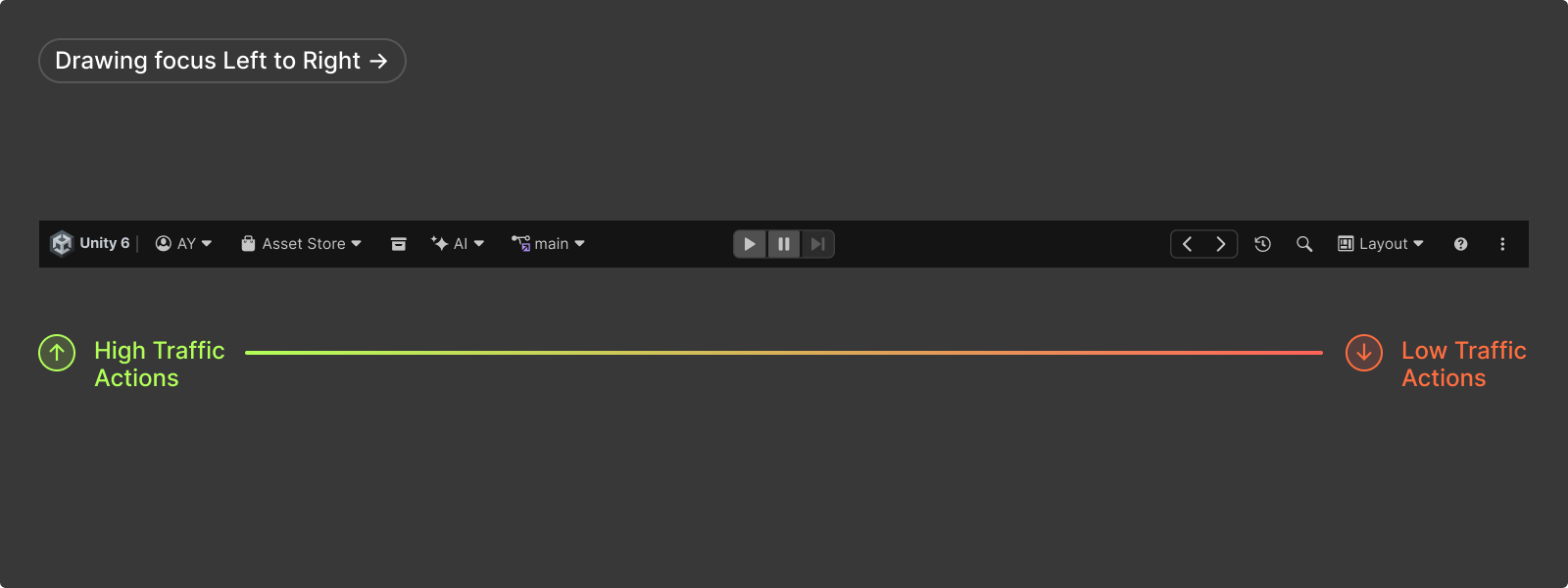
Main toolbar buttons layout

Editor Global Selection History:

  1. Back/forward buttons are positioned at the right hand side and hidden by default in the main toolbar
  2. Users can enable them via toolbar options
  3. Keyboard shortcuts are Ctrl/Cmd + [  or  Ctrl/Cmd + ]

Local Selection History:

  1. Provide back/forward buttons within the window's toolbar as its context affects selection within that window
  2. Use regular toolbar icon buttons
  3. Position buttons to right side of the window's toolbar (see toolbar button layout)
  4. If needed, consider window-scoped shortcuts i (e.g., Alt + Left/Right) and make them available in Shortcuts Manager
  5. Consider whether history should persist when window is closed/reopened. It should at least clear history when the window's editing target changes fundamentally (e.g., a different data set is loaded)

Do: Disable buttons when at history boundaries

Do: Use common Selection History Navigation button icons (load with EditorGUIUtility.LoadIcon("tab_prev") and EditorGUIUtility.LoadIcon("tab_next")

Don’t: Duplicate consecutive selections of the same item

Don’t: Add selections not initiated by user action
Icon Buttons

Cursor changing format while moving
Arrow buttons allowing Selection History navigation

Use common Selection History Navigation button icons

tab_prev
Navigate backward (previous selection)
EditorGUIUtility.LoadIcon("tab_prev")
tab_next
Navigate forward (next selection)
EditorGUIUtility.LoadIcon("tab_next")

Tooltips

Provide informative tooltips on history buttons:

Back button
"Previous Selection" and include the item name if useful
Forward button
 "Next Selection" and include the item name if useful

Visual Feedback

Showing selection feedback in the Hierarchy, affecting the Inspector view content
  1. Selection highlight should update in source views (Hierarchy, Project or your local window) when navigating history
  2. Inspector should update immediately and display current selection normally
  3. No intrusive animations or notifications needed: the updated selection highlight is sufficient feedback

Resources

Kits, tools, libraries, and documentation to guide users through creating for the Editor.